Measurement: Difference between revisions
No edit summary |
No edit summary |
||
| (67 intermediate revisions by the same user not shown) | |||
| Line 1: | Line 1: | ||
==== What is measurable? ==== | ==== What is measurable? ==== | ||
You can measure any type of 3D data and 2D plans that are visualized. | You can measure any type of 3D data and 2D plans that are visualized. | ||
Measurements are organized and stored in [[Layer|layers]]. | |||
---- | |||
==== What measurement tools are available? ==== | ==== What measurement tools are available? ==== | ||
| Line 28: | Line 32: | ||
| colspan="1" rowspan="1" | | | colspan="1" rowspan="1" | | ||
|} | |} | ||
== Distance Measurement == | |||
[[File:Distance1.png|600x600px]] | |||
==== | A ''Distance Measurement'' is a measurement of the shortest '''path between a specified start- and endpoint.''' | ||
* Choose the | |||
* | ==== Create a Distance Measurement ==== | ||
* | * Choose the ''"Distance"'' measurement tool | ||
* | * Left-click to designate a start/end point on the model or plan data | ||
* Choose the desired layer from the list to store the measurement | |||
* You can proceed with additional measurements or save the current one by clicking on ''"Finish"'' | |||
For further information on working with measurement layers, click [[Layer#Measurement Layer|here]]… | |||
[[File:InUworld-Distance Measurement highlighted.jpg|none|thumb]] | |||
[[File:InUworld-Distance Measurement 2 highlighted.jpg|none|thumb|727x727px]] | |||
==== Save a measurement ==== | |||
Once the measurement is completed, a number indicating the count of unsaved measurements appears next to the measurement symbol in the top-left corner | |||
* Open the measurement | |||
* Click on the ''red dialog box'' | |||
* A popup will appear; select ''"Save changes"'' to save the measurements | |||
[[File:InUworld-Save Measurements highlighted.jpg|none|thumb|464x464px]] | |||
[[File:InUworld-Save Measurements Pop Up highlighted.jpg|none|thumb|474x474px]] | |||
==== Modify a Distance Measurement ==== | |||
'''If a measurement hasn't been stored yet:''' | |||
While the measurement remains unsaved, adjustments can be made to both measurement points. Additionally, you can select and edit other measurements during this stage. | |||
* To relocate a measurement point, simply hold down the Left-Mouse-Button and move the point to the desired location | |||
'''For a stored measurement:''' | |||
* To | * Click on the measurement you wish to modify | ||
* If not yet activated, click on the ''eye icon'' to make the measurement visible (To activate all measurements, click on the eye of the folder, if you only want to activate a specific measurement, click on its corresponding eye icon) | |||
* Click on the ''tape measurement'' to open the drop-down menu | |||
* Click on ''"Edit"'' | |||
* Make the necessary modifications | |||
* Store the changes | |||
[[File:InUworld-Edit Measurement highlighted.jpg|none|thumb]] | |||
[[File:InUworld-Edit Measurement 2 highlighted.jpg|none|thumb]] | |||
==== | ==== Delete a measurement ==== | ||
* | * Click on the measurement you wish to delete | ||
* Click on the | * If not yet activated, click on the ''eye icon'' to make the measurement visible (To activate all measurements, click on the eye of the folder, if you only want to activate a specific measurement, click on its corresponding eye icon) | ||
* The | * Click on the ''tape measurement'' to open the drop-down menu | ||
* Press the | * Click on ''"Edit"'' | ||
* Within the point cloud, select the measurement you wish to remove | |||
* The measurement will turn red, indicating it's ready for deletion | |||
* Press the ''"Delete"'' key on your keyboard or click on the ''trash bin'' icon | |||
or | or | ||
* Select the desired measurement in the | * Select the desired measurement in the navigation pane | ||
* | * ''Right-click'' to open the context menu | ||
* | * Click on the ''"Delete"'' button | ||
[[File:InUworld-Measurement visibility highlighted.jpg|none|thumb]] | |||
[[File:InUworld-Edit Measurements highlighted.jpg|none|thumb]] | |||
[[File:InUworld-Click on Measurement highlighted.jpg|none|thumb|536x536px]] | |||
==== | |||
* Select the measurement you | ==== Move a measurement from one layer to another ==== | ||
* Drag and Drop the desired | '''Option 1:''' | ||
* Select the measurement you wish to move within the navigation pane | |||
* ''Drag and Drop'' it into the desired layer[[File:InUworld-Drag and Drop Measurements highlighted.jpg|none|thumb|427x427px]] | |||
or | or | ||
* | '''Option 2''': | ||
* | |||
* | * Click on the measurement you wish to move | ||
* Finish | * If not yet activated, click on the ''eye icon'' to make the measurement visible (To activate all measurements, click on the eye of the folder, if you only want to activate a specific measurement, click on its corresponding eye icon) | ||
* Click on the ''tape measurement'' to open the drop-down menu | |||
* Click on ''"Edit"'' | |||
* Within the point cloud, select the measurement you wish to move to another layer | |||
* The measurement will turn red, indicating it's ready for deletion | |||
* The ''Edit window'' appears | |||
* Click on the dropdown menu of ''"Measurement Layer"'' | |||
* Choose one of the existing ones, or create a new layer | |||
* Click on ''"Finish"'' to save the changes | |||
[[File:InUworld-Measurement visibility highlighted.jpg|none|thumb]] | |||
[[File:InUworld-Edit_Measurements_highlighted.jpg|none|thumb]] | |||
[[File:InUworld-Move Measurement to different layer 2 highlighted.jpg|none|thumb|539x539px]] | |||
[[File:InUworld-Move Measurement to different layer 3 highlighted.jpg|none|thumb|511x511px]] | |||
| Line 89: | Line 127: | ||
== Polyline Measurement == | == Polyline Measurement == | ||
A | A ''Polyline'' measurement is a measurement of the shortest path along a selection of specified points. | ||
It shows the '''distance between two or more points'''. (XYZ axis) | It shows the '''distance between two or more points'''. (XYZ axis) | ||
==== | [[File:Polyline1.png|600x600px]] | ||
* Choose the | |||
==== Create a Polyline measurement ==== | |||
* Choose the ''"Polyline"'' measurement tool | |||
* Select the wanted points in the model or the plan data | * Select the wanted points in the model or the plan data | ||
* Select the desired | * Select the desired layer from the list in which the measurement is to be save | ||
* Click on the | * Click on the ''"Finish"'' button | ||
* Now you can start the next measurement or store the measurement | * Now you can start the next measurement or store the measurement | ||
For further information on working with measurement layers, click [[Layer#Measurement Layer|here]]. | |||
[[File:InUworld-Create Polyline highlighted.jpg|none|thumb]] | |||
[[File:InUworld-Create Polyline 2 highlighted.jpg|none|thumb]] | |||
==== Save a measurement ==== | |||
Once a measurement is completed, a numerical indicator (representing the number of unsaved measurements) appears next to the measurement symbol in the top left corner. | |||
* Click on the measurement tape with the red number | |||
* Click on the red dialog box stating ''"Measurements and/or layers have not been saved yet"'' | |||
* A popup will appear; choose ''"Save changes"'' to save the measurements. | |||
[[File:InUworld-Save Measurements highlighted.jpg|none|thumb]] | |||
[[File:InUworld-Save Measurements Pop Up highlighted.jpg|none|thumb|395x395px]] | |||
==== Change a Polyline measurement ==== | |||
'''If the measurement has not been saved:''' | |||
While the measurement remains unsaved, adjustments can be made at any points. You can also select and edit other measurements during this stage. | |||
To manipulate a Polyline measurement: | |||
* To '''add a point''', left-click on the red line | |||
* To '''remove a point''', left-click on the blue point you wish to remove | |||
* To '''relocate a point''', hold down the Left-Mouse-Button and move the point to the desired position | |||
'''If the measurement has been saved:''' | |||
* Click on the measurement you wish to move | |||
* If not yet activated, click on the ''eye icon'' to make the measurement visible (To activate all measurements, click on the eye of the folder, if you only want to activate a specific measurement, click on its corresponding eye icon) | |||
* Click on the ''tape measurement'' to open the drop-down menu | |||
* Click on ''"Edit"'' | |||
* To '''add a point''', left-click on the red line | |||
* To '''remove a point''', left-click on the blue point you wish to remove | |||
* To '''relocate a point''', hold down the Left-Mouse-Button and move the point to the desired position | |||
[[File:InUworld-Polyline Edit highlighted.jpg|none|thumb]] | |||
'''Add a point:''' | |||
[[File:InUworld-Polyline Edit Add a point highlighted.jpg|none|thumb|391x391px]] | |||
'''Remove a point:''' | |||
[[File:InUworld-Polyline Edit Remove a point highlighted.jpg|none|thumb|394x394px]] | |||
'''Relocate a point:''' | |||
[[File:InUworld-Polyline Edit Relocate a point highlighted.jpg|none|thumb|430x430px]] | |||
==== Delete a measurement ==== | |||
* Click on the measurement you wish to delete | |||
* Click on the | |||
* If not yet activated, click on the ''eye icon'' to make the measurement visible (To activate all measurements, click on the eye of the folder, if you only want to activate a specific measurement, click on its corresponding eye icon) | |||
* | * Click on the ''tape measurement'' to open the drop-down menu | ||
* Click on the | * Click on ''"Edit"'' | ||
* The | * Within the point cloud, select the measurement you wish to remove | ||
* Press the | * The measurement will turn red, indicating it's ready for deletion | ||
* Press the ''"Delete"'' key on your keyboard or click on the ''trash bin'' icon | |||
or | or | ||
* Select the desired measurement in the | * Select the desired measurement in the navigation pane | ||
* | * ''Right-click'' to open the context menu | ||
* | * Click on the ''"Delete"'' button | ||
[[File:InUworld-Measurement visibility highlighted.jpg|none|thumb]] | |||
[[File:InUworld-Edit Measurements highlighted.jpg|none|thumb]] | |||
[[File:InUworld-Click on Measurement highlighted.jpg|none|thumb|536x536px]] | |||
==== | ==== Move a measurement from one layer to another ==== | ||
* Select the measurement you | '''Option 1:''' | ||
* Drag and Drop the desired | * Select the measurement you wish to move within the navigation pane | ||
* ''Drag and Drop'' it into the desired layer[[File:InUworld-Drag and Drop Measurements highlighted.jpg|none|thumb|427x427px]] | |||
or | or | ||
* | '''Option 2''': | ||
* | |||
* | * Click on the measurement you wish to move | ||
* Finish | * If not yet activated, click on the ''eye icon'' to make the measurement visible (To activate all measurements, click on the eye of the folder, if you only want to activate a specific measurement, click on its corresponding eye icon) | ||
* Click on the ''tape measurement'' to open the drop-down menu | |||
* Click on ''"Edit"'' | |||
* Within the point cloud, select the measurement you wish to move to another layer | |||
* The measurement will turn red, indicating it's ready for deletion | |||
* The ''Edit window'' appears | |||
* Click on the dropdown menu of ''"Measurement Layer"'' | |||
* Choose one of the existing ones, or create a new layer | |||
* Click on ''"Finish"'' to save the changes | |||
[[File:InUworld-Measurement visibility highlighted.jpg|none|thumb]] | |||
[[File:InUworld-Edit_Measurements_highlighted.jpg|none|thumb]] | |||
[[File:InUworld-Move Measurement to different layer 2 highlighted.jpg|none|thumb|539x539px]] | |||
[[File:InUworld-Move Measurement to different layer 3 highlighted.jpg|none|thumb|511x511px]] | |||
[[Measurement#What is measurable?|>>Back to Top<<]] | [[Measurement#What is measurable?|>>Back to Top<<]] | ||
== Vertical | == Vertical Measurement == | ||
A ''Vertical'' measurement is a measurement of the height difference between two specified points. | |||
A | |||
==== | [[File:Vertical1.png|600x600px]] | ||
* | |||
* | ==== Create a Vertical measurement ==== | ||
* Select the | * Select the ''"Vertical"'' measurement tool | ||
* | * Left-click to choose a point at the top and another point on the floor within the model | ||
* Select the layer for storing the measurement from the provided list | |||
* Proceed with additional measurements or store the current one | |||
For further information on working with measurement layers, click [[Layer#Measurement Layer|here]]. | |||
[[File:InUworld-Vertical Measurement highlighted.jpg|none|thumb|481x481px]] | |||
[[File:InUworld-Vertical Measurement 2 highlighted.jpg|none|thumb|408x408px]] | |||
==== Save a measurement ==== | |||
Once a measurement is completed, a numerical indicator (representing the number of unsaved measurements) appears next to the measurement symbol in the top left corner. | |||
* Click on the measurement tape with the red number | |||
* Click on the red dialog box stating ''"Measurements and/or layers have not been saved yet"'' | |||
* A popup will appear; choose ''"Save changes"'' to save the measurements. | |||
[[File:InUworld-Save Measurements highlighted.jpg|none|thumb]] | |||
[[File:InUworld-Save Measurements Pop Up highlighted.jpg|none|thumb|395x395px]] | |||
==== Change a Vertical measurement ==== | |||
'''If the measurement has not been saved:''' | |||
While the measurement remains unsaved, adjustments can be made at both points. Additionally, other measurements can be selected and edited during this stage. | |||
* | * To relocate a measurement point, simply hold down the Left-Mouse-Button and move it to the desired location | ||
* However, note that the middle point of a Vertical Measurement is not movable. | |||
* | |||
'''If the measurement has been saved:''' | |||
''' | |||
* Click on the measurement you wish to modify | |||
* If not yet activated, click on the ''eye icon'' to make the measurement visible (To activate all measurements, click on the eye of the folder, if you only want to activate a specific measurement, click on its corresponding eye icon) | |||
* Click on the ''tape measurement'' to open the drop-down menu | |||
* Click on ''"Edit"'' | |||
* Make the necessary modifications | |||
* Save the changes | |||
[[File:InUworld-Edit Measurement highlighted.jpg|none|thumb]] | |||
[[File:InUworld-Edit Measurement Tool highlighted.jpg|none|thumb]] | |||
==== Delete a measurement ==== | |||
* Click on the | *Click on the measurement you wish to delete | ||
* If not yet activated, click on the ''eye icon'' to make the measurement visible (To activate all measurements, click on the eye of the folder, if you only want to activate a specific measurement, click on its corresponding eye icon) | |||
* | * Click on the ''tape measurement'' to open the drop-down menu | ||
* Click on the | * Click on ''"Edit"'' | ||
* The | * Within the point cloud, select the measurement you wish to remove | ||
* Press the | * The measurement will turn red, indicating it's ready for deletion | ||
* Press the ''"Delete"'' key on your keyboard or click on the ''trash bin'' icon | |||
or | or | ||
* Select the desired measurement in the | * Select the desired measurement in the navigation pane | ||
* | * ''Right-click'' to open the context menu | ||
* | * Click on the ''"Delete"'' button | ||
[[File:InUworld-Measurement visibility highlighted.jpg|none|thumb]] | |||
[[File:InUworld-Edit Measurements highlighted.jpg|none|thumb]] | |||
[[File:InUworld-Click on Measurement highlighted.jpg|none|thumb|536x536px]] | |||
==== | |||
* Select the measurement you | ==== Move a measurement from one layer to another ==== | ||
* Drag and Drop the desired | '''Option 1:''' | ||
* Select the measurement you wish to move within the navigation pane | |||
* ''Drag and Drop'' it into the desired layer[[File:InUworld-Drag and Drop Measurements highlighted.jpg|none|thumb|427x427px]] | |||
or | or | ||
* | '''Option 2''': | ||
* | |||
* | * Click on the measurement you wish to move | ||
* Finish | * If not yet activated, click on the ''eye icon'' to make the measurement visible (To activate all measurements, click on the eye of the folder, if you only want to activate a specific measurement, click on its corresponding eye icon) | ||
* Click on the ''tape measurement'' to open the drop-down menu | |||
* Click on ''"Edit"'' | |||
* Within the point cloud, select the measurement you wish to move to another layer | |||
* The measurement will turn red, indicating it's ready for deletion | |||
* The ''Edit window'' appears | |||
* Click on the dropdown menu of ''"Measurement Layer"'' | |||
* Choose one of the existing ones, or create a new layer | |||
* Click on ''"Finish"'' to save the changes | |||
[[File:InUworld-Measurement visibility highlighted.jpg|none|thumb]] | |||
[[File:InUworld-Edit_Measurements_highlighted.jpg|none|thumb]] | |||
[[File:InUworld-Move Measurement to different layer 2 highlighted.jpg|none|thumb|539x539px]] | |||
[[File:InUworld-Move Measurement to different layer 3 highlighted.jpg|none|thumb|511x511px]] | |||
| Line 212: | Line 336: | ||
== Axis Aligned Measurement == | == Axis Aligned Measurement == | ||
The ''Axis Aligned'' measurement shows the distance on '''all axes between two points'''. (XYZ axis) | |||
The | |||
[[File:AxisAligned1.png|600x600px]] | |||
==== Create an Axis Aligned measurement ==== | |||
* Choose the ''"Axis Aligned"'' measurement tool | |||
* Left-click to designate a point at the top and another anywhere on the floor within the model | |||
* Choose the desired layer from the provided list to save the measurement | |||
* Proceed with additional measurements or save the current one | |||
For further information on working with measurement layers, click [[Layer#Measurement Layer|here]]. | |||
[[File:InUworld-Axis Aligned measurement highlighted.jpg|none|thumb|475x475px]] | |||
[[File:InUworld-Axis Aligned measurement 2 highlighted.jpg|none|thumb]] | |||
==== Save a measurement ==== | |||
Once a measurement is completed, a numerical indicator (representing the number of unsaved measurements) appears next to the measurement symbol in the top left corner. | |||
* Click on the measurement tape with the red number | |||
* Click on the red dialog box stating ''"Measurements and/or layers have not been saved yet"'' | |||
* A popup will appear; choose ''"Save changes"'' to save the measurements. | |||
[[File:InUworld-Save Measurements highlighted.jpg|none|thumb]] | |||
[[File:InUworld-Save Measurements Pop Up highlighted.jpg|none|thumb|395x395px]] | |||
==== | ==== Change an Axis Aligned measurement ==== | ||
'''If the measurement has not been saved:''' | |||
While the measurement remains unsaved, adjustments can be made at both points. Additionally, other measurements can be selected and edited during this stage. | |||
* To relocate a measurement point, simply hold down the Left-Mouse-Button and move it to the desired location | |||
* However, note that the middle point of a Vertical Measurement is not movable. | |||
'''If the measurement has been saved:''' | |||
*Click on the measurement you wish to modify | |||
* If not yet activated, click on the ''eye icon'' to make the measurement visible (To activate all measurements, click on the eye of the folder, if you only want to activate a specific measurement, click on its corresponding eye icon) | |||
* Click on the ''tape measurement'' to open the drop-down menu | |||
* Click on ''"Edit"'' | |||
* Make the necessary modifications | |||
* Save the changes | |||
[[File:InUworld-Edit Measurement highlighted.jpg|none|thumb]] | |||
[[File:InUworld-Edit Measurement 2 highlighted.jpg|none|thumb]] | |||
==== Delete a measurement ==== | |||
* Click on the | *Click on the measurement you wish to delete | ||
* If not yet activated, click on the ''eye icon'' to make the measurement visible (To activate all measurements, click on the eye of the folder, if you only want to activate a specific measurement, click on its corresponding eye icon) | |||
* | * Click on the ''tape measurement'' to open the drop-down menu | ||
* Click on the | * Click on ''"Edit"'' | ||
* The | * Within the point cloud, select the measurement you wish to remove | ||
* Press the | * The measurement will turn red, indicating it's ready for deletion | ||
* Press the ''"Delete"'' key on your keyboard or click on the ''trash bin'' icon | |||
or | or | ||
* Select the desired measurement in the | * Select the desired measurement in the navigation pane | ||
* | * ''Right-click'' to open the context menu | ||
* | * Click on the ''"Delete"'' button | ||
[[File:InUworld-Measurement visibility highlighted.jpg|none|thumb]] | |||
[[File:InUworld-Edit Measurements highlighted.jpg|none|thumb]] | |||
[[File:InUworld-Click on Measurement highlighted.jpg|none|thumb|536x536px]] | |||
==== | |||
* Select the measurement you | ==== Move a measurement from one layer to another ==== | ||
* Drag and Drop the desired | '''Option 1:''' | ||
* Select the measurement you wish to move within the navigation pane | |||
* ''Drag and Drop'' it into the desired layer[[File:InUworld-Drag and Drop Measurements highlighted.jpg|none|thumb|427x427px]] | |||
or | or | ||
'''Option 2''': | |||
[[Measurement#What is measurable?|>>Back to Top<<]] | * Click on the measurement you wish to move | ||
* If not yet activated, click on the ''eye icon'' to make the measurement visible (To activate all measurements, click on the eye of the folder, if you only want to activate a specific measurement, click on its corresponding eye icon) | |||
* Click on the ''tape measurement'' to open the drop-down menu | |||
* Click on ''"Edit"'' | |||
* Within the point cloud, select the measurement you wish to move to another layer | |||
* The measurement will turn red, indicating it's ready for deletion | |||
* The ''Edit window'' appears | |||
* Click on the dropdown menu of ''"Measurement Layer"'' | |||
* Choose one of the existing ones, or create a new layer | |||
* Click on ''"Finish"'' to save the changes | |||
[[File:InUworld-Measurement visibility highlighted.jpg|none|thumb]] | |||
[[File:InUworld-Edit_Measurements_highlighted.jpg|none|thumb]] | |||
[[File:InUworld-Move Measurement to different layer 2 highlighted.jpg|none|thumb|539x539px]] | |||
[[File:InUworld-Move Measurement to different layer 3 highlighted.jpg|none|thumb|511x511px]][[Measurement#What is measurable?|>>Back to Top<<]] | |||
== Line Measurement == | == Line Measurement == | ||
A ''Line'' measurement is a measurement on a '''user-defined plane that calculates the distance between points of interest.''' | |||
A | |||
==== | [[File:Line1.png|600x600px]] | ||
* | |||
* | |||
* | ==== Create a Line measurement ==== | ||
* Select the desired | * Select the ''"Line"'' measurement tool | ||
* Click on the | * Choose a start/end point in the model or plan data | ||
* | * Click on the red line between the start/end points to add additional measurement points | ||
* Select the desired layer from the list to store the measurement | |||
* Click on the ''"Finish"'' button | |||
* You can now proceed with another measurement or save the current one | |||
For further information on working with measurement layers, click [[Layer#Measurement Layer|here]]. | |||
[[File:InUworld-Line Measurement highlighted.jpg|none|thumb|409x409px]] | |||
[[File:InUworld-Line Measurement 2 highlighted.jpg|none|thumb|451x451px]] | |||
==== Save a measurement ==== | |||
Once a measurement is completed, a numerical indicator (representing the number of unsaved measurements) appears next to the measurement symbol in the top left corner. | |||
* Click on the measurement tape with the red number | |||
* Click on the red dialog box stating ''"Measurements and/or layers have not been saved yet"'' | |||
* A popup will appear; choose ''"Save changes"'' to save the measurements. | |||
[[File:InUworld-Save Measurements highlighted.jpg|none|thumb]] | |||
[[File:InUworld-Save Measurements Pop Up highlighted.jpg|none|thumb|395x395px]] | |||
==== Change a Line measurement ==== | |||
'''If the measurement has not been saved:''' | |||
While the measurement remains unsaved, adjustments can be made at any points. You can also select and edit other measurements during this stage. | |||
To manipulate a Polyline measurement: | |||
* To '''add a point''', left-click on the red line | |||
* To '''remove a point''', left-click on the blue point you wish to remove | |||
* To '''relocate a point''', hold down the Left-Mouse-Button and move the point to the desired position | |||
'''If the measurement has been saved:''' | |||
* Click on the measurement you wish to move | |||
* If not yet activated, click on the ''eye icon'' to make the measurement visible (To activate all measurements, click on the eye of the folder, if you only want to activate a specific measurement, click on its corresponding eye icon) | |||
* Click on the ''tape measurement'' to open the drop-down menu | |||
* Click on ''"Edit"'' | |||
* To '''add a point''', left-click on the red line | |||
* To '''remove a point''', left-click on the blue point you wish to remove | |||
* To '''relocate a point''', hold down the Left-Mouse-Button and move the point to the desired position | |||
[[File:InUworld-Polyline Edit highlighted.jpg|none|thumb]] | |||
'''Add a point:''' | |||
[[File:InUworld-Polyline Edit Add a point highlighted.jpg|none|thumb|391x391px]] | |||
'''Remove a point:''' | |||
[[File:InUworld-Polyline Edit Remove a point highlighted.jpg|none|thumb|394x394px]] | |||
''' | '''Relocate a point:''' | ||
[[File:InUworld-Polyline Edit Relocate a point highlighted.jpg|none|thumb|430x430px]] | |||
==== Delete a measurement ==== | |||
* Click on the | *Click on the measurement you wish to delete | ||
* If not yet activated, click on the ''eye icon'' to make the measurement visible (To activate all measurements, click on the eye of the folder, if you only want to activate a specific measurement, click on its corresponding eye icon) | |||
* | * Click on the ''tape measurement'' to open the drop-down menu | ||
* Click on the | * Click on ''"Edit"'' | ||
* The | * Within the point cloud, select the measurement you wish to remove | ||
* Press the | * The measurement will turn red, indicating it's ready for deletion | ||
* Press the ''"Delete"'' key on your keyboard or click on the ''trash bin'' icon | |||
or | or | ||
* Select the desired measurement in the | * Select the desired measurement in the navigation pane | ||
* | * ''Right-click'' to open the context menu | ||
* | * Click on the ''"Delete"'' button | ||
[[File:InUworld-Measurement visibility highlighted.jpg|none|thumb]] | |||
[[File:InUworld-Edit Measurements highlighted.jpg|none|thumb]] | |||
[[File:InUworld-Click on Measurement highlighted.jpg|none|thumb|536x536px]] | |||
==== | ==== Move a measurement from one layer to another ==== | ||
* Select the measurement you | '''Option 1:''' | ||
* Drag and Drop the desired | * Select the measurement you wish to move within the navigation pane | ||
* ''Drag and Drop'' it into the desired layer[[File:InUworld-Drag and Drop Measurements highlighted.jpg|none|thumb|427x427px]] | |||
or | or | ||
'''Option 2''': | |||
* Click on the measurement you wish to move | |||
* If not yet activated, click on the ''eye icon'' to make the measurement visible (To activate all measurements, click on the eye of the folder, if you only want to activate a specific measurement, click on its corresponding eye icon) | |||
* Click on the ''tape measurement'' to open the drop-down menu | |||
* Click on ''"Edit"'' | |||
* Within the point cloud, select the measurement you wish to move to another layer | |||
* The measurement will turn red, indicating it's ready for deletion | |||
* The ''Edit window'' appears | |||
* Click on the dropdown menu of ''"Measurement Layer"'' | |||
* Choose one of the existing ones, or create a new layer | |||
* Click on ''"Finish"'' to save the changes | |||
[[File:InUworld-Measurement visibility highlighted.jpg|none|thumb]] | |||
[[File:InUworld-Edit_Measurements_highlighted.jpg|none|thumb]] | |||
[[File:InUworld-Move Measurement to different layer 2 highlighted.jpg|none|thumb|539x539px]] | |||
[[File:InUworld-Move Measurement to different layer 3 highlighted.jpg|none|thumb|511x511px]] | |||
[[Measurement#What is measurable?|>>Back to Top<<]] | [[Measurement#What is measurable?|>>Back to Top<<]] | ||
== Area Measurement == | == Area Measurement == | ||
The ''Area'' measurement is intended for '''area measurements on smooth planes.''' For example the floor or wall surfaces in buildings. | |||
The | |||
[[File:Area1.png|600x600px]] | |||
==== Create an Area measurement ==== | |||
NOTE: Please be aware that this tool is currently only functional in the ''Normal View''. If you're currently in the ''Cutaway View'', kindly switch to the ''Normal View'' to access its features. | |||
[[File:InUworld-View Mode Normal View highlighted.jpg|none|thumb]] | |||
* Select the ''"Area"'' measurement tool | |||
* Draw a plane by marking at least 3 points in the model or plan data | |||
* Choose the desired layer from the list to save the measurement | |||
* Click on the ''"Finish"'' button | |||
* Proceed with another measurement or save the current one | |||
For further information on working with measurement layers, click [[Layer#Measurement Layer|here]]. | |||
[[File:InUworld-Area Measurement highlighted.jpg|none|thumb]] | |||
[[File:InUworld-Area Measurement Plane highlighted.jpg|none|thumb|478x478px]] | |||
==== Save a measurement ==== | |||
Once a measurement is completed, a numerical indicator (representing the number of unsaved measurements) appears next to the measurement symbol in the top left corner. | |||
* Click on the measurement tape with the red number | |||
* Click on the red dialog box stating ''"Measurements and/or layers have not been saved yet"'' | |||
* A popup will appear; choose ''"Save changes"'' to save the measurements. | |||
[[File:InUworld-Save Measurements highlighted.jpg|none|thumb]] | |||
[[File:InUworld-Save Measurements Pop Up highlighted.jpg|none|thumb|395x395px]] | |||
==== Change a measurement ==== | |||
'''If the measurement has not been saved:''' | |||
While the measurement remains unsaved, adjustments can be made at any points. You can also select and edit other measurements during this stage. | |||
To manipulate a Polyline measurement: | |||
* To '''add a point''', left-click on the red line | |||
* To '''remove a point''', left-click on the blue point you wish to remove | |||
* To '''relocate a point''', hold down the Left-Mouse-Button and move the point to the desired position | |||
'''If the measurement has been saved:''' | |||
* | * Click on the measurement you wish to move | ||
* | * If not yet activated, click on the ''eye icon'' to make the measurement visible (To activate all measurements, click on the eye of the folder, if you only want to activate a specific measurement, click on its corresponding eye icon) | ||
* Click on the ''tape measurement'' to open the drop-down menu | |||
* Click on the | * Click on ''"Edit"'' | ||
* | |||
* To '''add a point''', left-click on the red line | |||
* To '''remove a point''', left-click on the blue point you wish to remove | |||
* To '''relocate a point''', hold down the Left-Mouse-Button and move the point to the desired position | |||
[[File:InUworld-Polyline Edit highlighted.jpg|none|thumb]] | |||
'''Add a point:''' | |||
[[File:InUworld-Polyline Edit Add a point highlighted.jpg|none|thumb|391x391px]] | |||
'''Remove a point:''' | |||
''' | [[File:InUworld-Polyline Edit Remove a point highlighted.jpg|none|thumb|394x394px]] | ||
'''Relocate a point:''' | |||
[[File:InUworld-Polyline Edit Relocate a point highlighted.jpg|none|thumb|430x430px]] | |||
==== Delete an Area measurement ==== | |||
* Click on the | *Click on the measurement you wish to delete | ||
* If not yet activated, click on the ''eye icon'' to make the measurement visible (To activate all measurements, click on the eye of the folder, if you only want to activate a specific measurement, click on its corresponding eye icon) | |||
* | * Click on the ''tape measurement'' to open the drop-down menu | ||
* Click on the | * Click on ''"Edit"'' | ||
* The | * Within the point cloud, select the measurement you wish to remove | ||
* Press the | * The measurement will turn red, indicating it's ready for deletion | ||
* Press the ''"Delete"'' key on your keyboard or click on the ''trash bin'' icon | |||
or | or | ||
* Select the desired measurement in the | * Select the desired measurement in the navigation pane | ||
* | * ''Right-click'' to open the context menu | ||
* | * Click on the ''"Delete"'' button | ||
[[File:InUworld-Measurement visibility highlighted.jpg|none|thumb]] | |||
[[File:InUworld-Edit Measurements highlighted.jpg|none|thumb]] | |||
[[File:InUworld-Click on Measurement highlighted.jpg|none|thumb|536x536px]] | |||
==== | |||
* Select the measurement you | ==== Move a measurement from one layer to another ==== | ||
* Drag and Drop the desired | '''Option 1:''' | ||
* Select the measurement you wish to move within the navigation pane | |||
* ''Drag and Drop'' it into the desired layer[[File:InUworld-Drag and Drop Measurements highlighted.jpg|none|thumb|427x427px]] | |||
or | or | ||
'''Option 2''': | |||
* Click on the measurement you wish to move | |||
* If not yet activated, click on the ''eye icon'' to make the measurement visible (To activate all measurements, click on the eye of the folder, if you only want to activate a specific measurement, click on its corresponding eye icon) | |||
* Click on the ''tape measurement'' to open the drop-down menu | |||
* Click on ''"Edit"'' | |||
* Within the point cloud, select the measurement you wish to move to another layer | |||
* The measurement will turn red, indicating it's ready for deletion | |||
* The ''Edit window'' appears | |||
* Click on the dropdown menu of ''"Measurement Layer"'' | |||
* Choose one of the existing ones, or create a new layer | |||
* Click on ''"Finish"'' to save the changes | |||
[[File:InUworld-Measurement visibility highlighted.jpg|none|thumb]] | |||
[[File:InUworld-Edit_Measurements_highlighted.jpg|none|thumb]] | |||
[[File:InUworld-Move Measurement to different layer 2 highlighted.jpg|none|thumb|539x539px]] | |||
[[File:InUworld-Move Measurement to different layer 3 highlighted.jpg|none|thumb|511x511px]] | |||
[[Measurement#What is measurable?|>>Back to Top<<]] | [[Measurement#What is measurable?|>>Back to Top<<]] | ||
== Area Strip Measurement == | == Area Strip Measurement == | ||
[[File:AreaStrip1.png | An ''Area Strip'' measurement allows you to measure the '''area of a triangulated surface.''' | ||
'''.'''[[File:AreaStrip1.png|600x600px]] | |||
==== Create an Area Strip measurement ==== | |||
* Select the ''Area Strip'' measurement tool | |||
* '''Draw a triangle''' by marking 3 points in the model | |||
* For additional triangles, select a 4th point. Each subsequent triangle shares a point with the previous one (e.g., point 2, 3, and 4 for the second triangle) | |||
* Select the desired layer from the list to store the measurement | |||
* Click on the ''"Finish"'' button | |||
* Proceed with another measurement or store the current one | |||
For further information on working with measurement layers, click [[Layer#Measurement Layer|here]]. | |||
[[File:InUworld-Area Strip Measurement 1 highlighted.jpg|none|thumb]] | |||
[[File:InUworld-Area Strip Measurement highlighted.jpg|none|thumb|428x428px]] | |||
==== Save a measurement ==== | |||
Once a measurement is completed, a numerical indicator (representing the number of unsaved measurements) appears next to the measurement symbol in the top left corner. | |||
* Click on the measurement tape with the red number | |||
* Click on the red dialog box stating ''"Measurements and/or layers have not been saved yet"'' | |||
* A popup will appear; choose ''"Save changes"'' to save the measurements. | |||
[[File:InUworld-Save Measurements highlighted.jpg|none|thumb]] | |||
[[File:InUworld-Save Measurements Pop Up highlighted.jpg|none|thumb|395x395px]] | |||
==== | ==== Change an Area Strip measure point ==== | ||
'''If the measurement has not been saved:''' | |||
While the measurement remains unsaved, adjustments can be made at all points. Additionally, other measurements can be selected and edited during this stage. | |||
To manipulate the ''Area Strip'' measurement: | |||
* To '''add a point''', left-click on the red line. | |||
* To '''remove a point''', left-click on the blue point you wish to remove. | |||
* To '''relocate a point''', hold down the Left-Mouse-Button and move it to the desired location on the red line. | |||
''' | '''Removing and adding another triangle/ point to an Area Strip Measurement is not possible at the moment!''' | ||
'''If the measurement has been saved:''' | |||
* Access the ''"Edit"'' measurement tool | |||
* Click on the measurement you wish to modify | |||
* Make the necessary modifications | |||
* Save the changes | |||
*Click on the measurement you wish to move | |||
* If not yet activated, click on the ''eye icon'' to make the measurement visible (To activate all measurements, click on the eye of the folder, if you only want to activate a specific measurement, click on its corresponding eye icon) | |||
* Click on the ''tape measure'' to open the drop-down menu | |||
* Click on ''"Edit"'' | |||
* To '''relocate a point''', hold down the Left-Mouse-Button and move the point to the desired position | |||
[[File:InUworld-Area Strip Measurement Edit highlighted.jpg|none|thumb]] | |||
[[File:InUworld-Area Strip Measurement Edit Relocate Point highlighted.jpg|none|thumb|484x484px]] | |||
==== Delete a measurement ==== | |||
* Click on the | *Click on the measurement you wish to delete | ||
* If not yet activated, click on the ''eye icon'' to make the measurement visible (To activate all measurements, click on the eye of the folder, if you only want to activate a specific measurement, click on its corresponding eye icon) | |||
* | * Click on the ''tape measurement'' to open the drop-down menu | ||
* Click on the | * Click on ''"Edit"'' | ||
* The | * Within the point cloud, select the measurement you wish to remove | ||
* Press the | * The measurement will turn red, indicating it's ready for deletion | ||
* Press the ''"Delete"'' key on your keyboard or click on the ''trash bin'' icon | |||
or | or | ||
* Select the desired measurement in the | * Select the desired measurement in the navigation pane | ||
* | * ''Right-click'' to open the context menu | ||
* | * Click on the ''"Delete"'' button | ||
[[File:InUworld-Measurement visibility highlighted.jpg|none|thumb]] | |||
[[File:InUworld-Edit Measurements highlighted.jpg|none|thumb]] | |||
[[File:InUworld-Click on Measurement highlighted.jpg|none|thumb|536x536px]] | |||
==== | ==== Move a measurement from one layer to another ==== | ||
* Select the measurement you | '''Option 1:''' | ||
* Drag and Drop the desired | * Select the measurement you wish to move within the navigation pane | ||
* ''Drag and Drop'' it into the desired layer[[File:InUworld-Drag and Drop Measurements highlighted.jpg|none|thumb|427x427px]] | |||
or | or | ||
'''Option 2''': | |||
* Click on the measurement you wish to move | |||
* If not yet activated, click on the ''eye icon'' to make the measurement visible (To activate all measurements, click on the eye of the folder, if you only want to activate a specific measurement, click on its corresponding eye icon) | |||
* Click on the ''tape measurement'' to open the drop-down menu | |||
* Click on ''"Edit"'' | |||
* Within the point cloud, select the measurement you wish to move to another layer | |||
* The measurement will turn red, indicating it's ready for deletion | |||
* The ''Edit window'' appears | |||
* Click on the dropdown menu of ''"Measurement Layer"'' | |||
* Choose one of the existing ones, or create a new layer | |||
* Click on ''"Finish"'' to save the changes | |||
[[File:InUworld-Measurement visibility highlighted.jpg|none|thumb]] | |||
[[File:InUworld-Edit_Measurements_highlighted.jpg|none|thumb]] | |||
[[File:InUworld-Move Measurement to different layer 2 highlighted.jpg|none|thumb|539x539px]] | |||
[[File:InUworld-Move Measurement to different layer 3 highlighted.jpg|none|thumb|511x511px]] | |||
[[Measurement#What is measurable?|>>Back to Top<<]] | [[Measurement#What is measurable?|>>Back to Top<<]] | ||
== Volume Measurement == | == Volume Measurement == | ||
A ''Volume'' measurement refers to the process of determining the '''amount of space occupied by a three-dimensional object.''' | |||
A | |||
[[File:Volume1.png|600x600px]] | |||
==== | ==== What types of Volume calculation options are available? ==== | ||
'''Volume calculation based on:''' | '''Volume calculation based on:''' | ||
* '''Best Fit Surface (default calculation type)''' Creates an optimized triangulated surface from the drawn points. | * '''Best Fit Surface (default calculation type):''' Creates an optimized triangulated surface from the drawn points. | ||
* '''Height''' | * '''Height:''' Calculates the volume above the defined height. | ||
* '''Point Clouds Difference''' Calculates the volume between two | * '''Point Clouds Difference:''' Calculates the volume between two point clouds. | ||
==== | ==== Create a Volume measurement based on "Best Fit Surface" ==== | ||
* | * Select the ''"Volume"'' measurement tool | ||
* | * Indicate the area to be measured by selecting at least 3 points on the point cloud | ||
* | * Choose the ''Calculation Type'' (example shows ''"Best Fit Surface"'' calculation type) | ||
* Press the | * In ''Storage Location'' choose an existing measurement layer or create a new one | ||
* Calculate the volume by clicking the ''"Calculate Volume"'' button (wait for the message ''"Calculating Volume succeeded"''). | |||
* Press the ''"Finish"'' button | |||
* Proceed with another measurement or store the current one | |||
For further information on working with measurement layers, click [[Layer#Measurement Layer|here]]. | |||
[[File:InUworld-Volume Measurement highlighted.jpg|none|thumb]] | |||
[[File:InUworld-Volume Measurement Calculation Type highlighted.jpg|none|thumb]] | |||
[[File:InUworld-Volume Measurement Storage Location highlighted.jpg|none|thumb]][[File:InUworld-Volume Measurement 2 highlighted.jpg|none|thumb|511x511px]] | |||
[[File:InUworld-Volume Measurement Calculating Notification.png|none|thumb]] | |||
[[File:InUworld-Volume Measurement Calculating Succeeded Notification.png|none|thumb]] | |||
[[File:InUworld-Volume Measurement Finished.jpg|none|thumb|401x401px]] | |||
==== Create a Volume measurement based on "Height" ==== | |||
* Choose the ''"Volume"'' measurement tool | |||
* Select at least 3 points on the point cloud to indicate the area to be measured | |||
* Navigate to ''"Calculation Type"'' in the volume menu | |||
* Open the drop down menu and choose ''Based on "Height"'' | |||
* You can manually enter the height | |||
or | |||
* Left-click on the desired point within the point cloud | |||
* The height of the selected point is automatically adopted | |||
* Calculate the volume by clicking the ''"Calculate Volume"'' button | |||
* The result is saved in the last layer used when saving the measurement | |||
or | or | ||
* | *Navigate to the "''Storage Location"'' option in the volume menu | ||
* | * Choose the desired layer from the list to store the measurement | ||
* Click on the | * Click on the ''"Finish"'' button | ||
* | * Proceed with another measurement or store the current one | ||
For further information on working with measurement layers, click [[Layer#Measurement Layer|here]]. | |||
[[File:InUworld-Volume Measurement highlighted.jpg|none|thumb]] | |||
[[File:InUworld-Volume Measurement By Height highlighted.jpg|none|thumb]] | |||
[[File:InUworld-Volume Measurement by Height 2 highlighted.jpg|none|thumb|375x375px]] | |||
[[File:InUworld-Volume Measurement Storage Location highlighted.jpg|none|thumb]][[File:InUworld-Volume Measurement Calculating Notification.png|none|thumb]] | |||
[[File:InUworld-Volume Measurement Calculating Succeeded Notification.png|none|thumb]] | |||
[[File:InUworld-Volume Measurement by Height 3 smaller cut.jpg|none|thumb]] | |||
or | ==== Create a Volume measurement based on "Point Clouds Difference" ==== | ||
This tool is designed for comparing or calculating changes relative to a previous state. For example, in a construction site excavation, you can use either the topology point cloud provided by the state or a scan taken prior to the excavation. With the ''Point Clouds Difference Volume Measurement'' tool, you can calculate the amount of material excavated. '''Please note:''' This tool requires a minimum of 2 point clouds. | |||
* Activate at least 2 point clouds within the navigation pane | |||
* Choose the ''"Volume"'' measurement tool | |||
* Select at least 3 points on the point cloud to indicate the area to be measured | |||
* Navigate to ''"Calculation Type"'' in the volume menu | |||
* Open the drop down menu and choose ''"Point Clouds Difference"'' | |||
* In the list, which shows all active point clouds, assign point clouds to the two groups by clicking on the group number (group 1 is the Surface Point Cloud and group 2 the Base Point Cloud) | |||
* Click on the ''"Calculate Volume"'' button | |||
* Click on the ''"Finish"'' button | |||
* Proceed with another measurement or store the current one | |||
For further information on working with measurement layers, click [[Layer#Measurement Layer|here]]. | |||
[[File:InUworld-Volume Measurement Activate Point Clouds highlighted.png|none|thumb|404x404px]] | |||
[[File:InUworld-Volume Measurement highlighted.jpg|none|thumb]] | |||
[[File:InUworld-Volume Measurement Select 3 Points highlighted.png|none|thumb|346x346px]] | |||
[[File:InUworld-Volume Measurement Calculation Type Point Clouds Difference highlighted.png|none|thumb]] | |||
[[File:InUworld-Volume Measurement Calculation Type Point Clouds Difference 3 highlighted.jpg|none|thumb|511x511px]] | |||
[[File:InUworld-Volume Measurement Storage Location highlighted.jpg|none|thumb]][[File:InUworld-Volume Measurement Calculating Notification.png|none|thumb]] | |||
[[File:InUworld-Volume Measurement Calculating Succeeded Notification.png|none|thumb]] | |||
[[File:InUworld-Volume Measurement Calculation Point Clouds Difference 4 highlighted.jpg|none|thumb|524x524px]] | |||
==== | ==== Save a measurement ==== | ||
Once the measurement is completed, a numerical indicator (representing the number of unsaved measurements) appears next to the measurement symbol at the top left corner. | |||
* Click on the measurement tape with the red number | |||
* Click on the red dialog box stating ''"Measurements and/or layers have not been saved yet"'' | |||
* A popup will appear; choose ''"Save changes"'' to save the measurements. | |||
[[File:InUworld-Save Measurements highlighted.jpg|none|thumb]] | |||
[[File:InUworld-Save Measurements Pop Up highlighted.jpg|none|thumb|395x395px]] | |||
==== Change a Volume measurement ==== | |||
'''If the measurement has not been saved:''' | |||
While the measurement remains unsaved, adjustments can be made at all points. Additionally, other measurements can be selected and edited during this stage. | |||
To manipulate the ''Volume'' measurement: | |||
* Check whether you are in the correct step of the volume calculation | * Check whether you are in the correct step of the volume calculation | ||
| Line 538: | Line 848: | ||
** Storage Location | ** Storage Location | ||
* To '''add a point''' | * To '''add a point''', left-click on the red line. | ||
* To '''remove a point''' | * To '''remove a point''', left-click on the blue point you wish to remove. | ||
* To ''' | * To '''relocate a point''', hold down the Left-Mouse-Button and move it to the desired location on the red line. | ||
'''If the measurement has been saved:''' | |||
''' | * Click on the measurement you wish to move | ||
* If not yet activated, click on the ''eye icon'' to make the measurement visible (To activate all measurements, click on the eye of the folder, if you only want to activate a specific measurement, click on its corresponding eye icon) | |||
* | * Click on the ''tape measurement'' to open the drop-down menu | ||
* Click on the | * Click on ''"Edit"'' | ||
* Check whether you are in the correct step of the volume calculation | * Check whether you are in the correct step of the volume calculation | ||
** Calculation Area | ** Calculation Area | ||
** Calculation Type | ** Calculation Type | ||
** Storage Location | ** Storage Location | ||
* | * Make the necessary modifications | ||
* Save the changes | |||
[[File:InUworld-Polyline Edit highlighted.jpg|none|thumb]] | |||
'''Add a point:''' | |||
[[File:InUworld-Polyline Edit Add a point highlighted.jpg|none|thumb|391x391px]] | |||
'''Remove a point:''' | |||
[[File:InUworld-Polyline Edit Remove a point highlighted.jpg|none|thumb|394x394px]] | |||
'''Relocate a point:''' | |||
[[File:InUworld-Polyline Edit Relocate a point highlighted.jpg|none|thumb|430x430px]] | |||
==== Delete a Volume measurement ==== | |||
* Click on the measurement you wish to delete | |||
* If not yet activated, click on the ''eye icon'' to make the measurement visible (To activate all measurements, click on the eye of the folder, if you only want to activate a specific measurement, click on its corresponding eye icon) | |||
* | * Click on the ''tape measurement'' to open the drop-down menu | ||
* Click on the | * Click on ''"Edit"'' | ||
* The | * Within the point cloud, select the measurement you wish to remove | ||
* Press the | * The measurement will turn red, indicating it's ready for deletion | ||
* Press the ''"Delete"'' key on your keyboard or click on the ''trash bin'' icon | |||
or | or | ||
* Select the desired measurement in the | * Select the desired measurement in the navigation pane | ||
* | * ''Right-click'' to open the context menu | ||
* | * Click on the ''"Delete"'' button | ||
[[File:InUworld-Measurement visibility highlighted.jpg|none|thumb]] | |||
[[File:InUworld-Edit Measurements highlighted.jpg|none|thumb]] | |||
[[File:InUworld-Click on Measurement highlighted.jpg|none|thumb|536x536px]] | |||
==== | ==== Move a measurement from one layer to another ==== | ||
* Select the measurement you | '''Option 1:''' | ||
* Drag and Drop the desired | * Select the measurement you wish to move within the navigation pane | ||
* ''Drag and Drop'' it into the desired layer[[File:InUworld-Drag and Drop Measurements highlighted.jpg|none|thumb|427x427px]] | |||
or | or | ||
'''Option 2''': | |||
* Click on the measurement you wish to move | |||
* If not yet activated, click on the ''eye icon'' to make the measurement visible (To activate all measurements, click on the eye of the folder, if you only want to activate a specific measurement, click on its corresponding eye icon) | |||
* Click on the ''tape measurement'' to open the drop-down menu | |||
* Click on ''"Edit"'' | |||
* Within the point cloud, select the measurement you wish to move to another layer | |||
* The measurement will turn red, indicating it's ready for deletion | |||
* The ''Edit window'' appears | |||
* Click on the dropdown menu of ''"Measurement Layer"'' | |||
* Choose one of the existing ones, or create a new layer | |||
* Click on ''"Finish"'' to save the changes | |||
[[File:InUworld-Measurement visibility highlighted.jpg|none|thumb]] | |||
[[File:InUworld-Edit_Measurements_highlighted.jpg|none|thumb]] | |||
[[File:InUworld-Move Measurement to different layer 2 highlighted.jpg|none|thumb|539x539px]] | |||
[[File:InUworld-Move Measurement to different layer 3 highlighted.jpg|none|thumb|511x511px]] | |||
[[Measurement#What is measurable?|>>Back to Top<<]]<div class="noprint" style="background-color:#FAFAFA; position:fixed; bottom:2%; left:0.25%; padding:0; margin:0;"> | [[Measurement#What is measurable?|>>Back to Top<<]]<div class="noprint" style="background-color:#FAFAFA; position:fixed; bottom:2%; left:0.25%; padding:0; margin:0;"> | ||
</div> | </div> | ||
Latest revision as of 09:07, 10 June 2024
What is measurable?
You can measure any type of 3D data and 2D plans that are visualized.
Measurements are organized and stored in layers.
What measurement tools are available?
| Line Measurement | Area Measurement | Volume Measurement |
|---|---|---|
| Distance | Area | Volume |
| Polyline | Area Strip | |
| Vertical | ||
| Line | ||
| Axis Aligned |
Distance Measurement

A Distance Measurement is a measurement of the shortest path between a specified start- and endpoint.
Create a Distance Measurement
- Choose the "Distance" measurement tool
- Left-click to designate a start/end point on the model or plan data
- Choose the desired layer from the list to store the measurement
- You can proceed with additional measurements or save the current one by clicking on "Finish"
For further information on working with measurement layers, click here…


Save a measurement
Once the measurement is completed, a number indicating the count of unsaved measurements appears next to the measurement symbol in the top-left corner
- Open the measurement
- Click on the red dialog box
- A popup will appear; select "Save changes" to save the measurements


Modify a Distance Measurement
If a measurement hasn't been stored yet:
While the measurement remains unsaved, adjustments can be made to both measurement points. Additionally, you can select and edit other measurements during this stage.
- To relocate a measurement point, simply hold down the Left-Mouse-Button and move the point to the desired location
For a stored measurement:
- Click on the measurement you wish to modify
- If not yet activated, click on the eye icon to make the measurement visible (To activate all measurements, click on the eye of the folder, if you only want to activate a specific measurement, click on its corresponding eye icon)
- Click on the tape measurement to open the drop-down menu
- Click on "Edit"
- Make the necessary modifications
- Store the changes


Delete a measurement
- Click on the measurement you wish to delete
- If not yet activated, click on the eye icon to make the measurement visible (To activate all measurements, click on the eye of the folder, if you only want to activate a specific measurement, click on its corresponding eye icon)
- Click on the tape measurement to open the drop-down menu
- Click on "Edit"
- Within the point cloud, select the measurement you wish to remove
- The measurement will turn red, indicating it's ready for deletion
- Press the "Delete" key on your keyboard or click on the trash bin icon
or
- Select the desired measurement in the navigation pane
- Right-click to open the context menu
- Click on the "Delete" button


Move a measurement from one layer to another
Option 1:
- Select the measurement you wish to move within the navigation pane
- Drag and Drop it into the desired layer
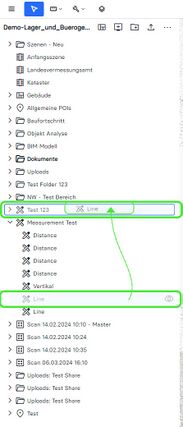

or
Option 2:
- Click on the measurement you wish to move
- If not yet activated, click on the eye icon to make the measurement visible (To activate all measurements, click on the eye of the folder, if you only want to activate a specific measurement, click on its corresponding eye icon)
- Click on the tape measurement to open the drop-down menu
- Click on "Edit"
- Within the point cloud, select the measurement you wish to move to another layer
- The measurement will turn red, indicating it's ready for deletion
- The Edit window appears
- Click on the dropdown menu of "Measurement Layer"
- Choose one of the existing ones, or create a new layer
- Click on "Finish" to save the changes


Polyline Measurement
A Polyline measurement is a measurement of the shortest path along a selection of specified points.
It shows the distance between two or more points. (XYZ axis)

Create a Polyline measurement
- Choose the "Polyline" measurement tool
- Select the wanted points in the model or the plan data
- Select the desired layer from the list in which the measurement is to be save
- Click on the "Finish" button
- Now you can start the next measurement or store the measurement
For further information on working with measurement layers, click here.


Save a measurement
Once a measurement is completed, a numerical indicator (representing the number of unsaved measurements) appears next to the measurement symbol in the top left corner.
- Click on the measurement tape with the red number
- Click on the red dialog box stating "Measurements and/or layers have not been saved yet"
- A popup will appear; choose "Save changes" to save the measurements.
Change a Polyline measurement
If the measurement has not been saved:
While the measurement remains unsaved, adjustments can be made at any points. You can also select and edit other measurements during this stage.
To manipulate a Polyline measurement:
- To add a point, left-click on the red line
- To remove a point, left-click on the blue point you wish to remove
- To relocate a point, hold down the Left-Mouse-Button and move the point to the desired position
If the measurement has been saved:
- Click on the measurement you wish to move
- If not yet activated, click on the eye icon to make the measurement visible (To activate all measurements, click on the eye of the folder, if you only want to activate a specific measurement, click on its corresponding eye icon)
- Click on the tape measurement to open the drop-down menu
- Click on "Edit"
- To add a point, left-click on the red line
- To remove a point, left-click on the blue point you wish to remove
- To relocate a point, hold down the Left-Mouse-Button and move the point to the desired position

Add a point:

Remove a point:

Relocate a point:

Delete a measurement
- Click on the measurement you wish to delete
- If not yet activated, click on the eye icon to make the measurement visible (To activate all measurements, click on the eye of the folder, if you only want to activate a specific measurement, click on its corresponding eye icon)
- Click on the tape measurement to open the drop-down menu
- Click on "Edit"
- Within the point cloud, select the measurement you wish to remove
- The measurement will turn red, indicating it's ready for deletion
- Press the "Delete" key on your keyboard or click on the trash bin icon
or
- Select the desired measurement in the navigation pane
- Right-click to open the context menu
- Click on the "Delete" button
Move a measurement from one layer to another
Option 1:
- Select the measurement you wish to move within the navigation pane
- Drag and Drop it into the desired layer
or
Option 2:
- Click on the measurement you wish to move
- If not yet activated, click on the eye icon to make the measurement visible (To activate all measurements, click on the eye of the folder, if you only want to activate a specific measurement, click on its corresponding eye icon)
- Click on the tape measurement to open the drop-down menu
- Click on "Edit"
- Within the point cloud, select the measurement you wish to move to another layer
- The measurement will turn red, indicating it's ready for deletion
- The Edit window appears
- Click on the dropdown menu of "Measurement Layer"
- Choose one of the existing ones, or create a new layer
- Click on "Finish" to save the changes
Vertical Measurement
A Vertical measurement is a measurement of the height difference between two specified points.

Create a Vertical measurement
- Select the "Vertical" measurement tool
- Left-click to choose a point at the top and another point on the floor within the model
- Select the layer for storing the measurement from the provided list
- Proceed with additional measurements or store the current one
For further information on working with measurement layers, click here.


Save a measurement
Once a measurement is completed, a numerical indicator (representing the number of unsaved measurements) appears next to the measurement symbol in the top left corner.
- Click on the measurement tape with the red number
- Click on the red dialog box stating "Measurements and/or layers have not been saved yet"
- A popup will appear; choose "Save changes" to save the measurements.
Change a Vertical measurement
If the measurement has not been saved:
While the measurement remains unsaved, adjustments can be made at both points. Additionally, other measurements can be selected and edited during this stage.
- To relocate a measurement point, simply hold down the Left-Mouse-Button and move it to the desired location
- However, note that the middle point of a Vertical Measurement is not movable.
If the measurement has been saved:
- Click on the measurement you wish to modify
- If not yet activated, click on the eye icon to make the measurement visible (To activate all measurements, click on the eye of the folder, if you only want to activate a specific measurement, click on its corresponding eye icon)
- Click on the tape measurement to open the drop-down menu
- Click on "Edit"
- Make the necessary modifications
- Save the changes

Delete a measurement
- Click on the measurement you wish to delete
- If not yet activated, click on the eye icon to make the measurement visible (To activate all measurements, click on the eye of the folder, if you only want to activate a specific measurement, click on its corresponding eye icon)
- Click on the tape measurement to open the drop-down menu
- Click on "Edit"
- Within the point cloud, select the measurement you wish to remove
- The measurement will turn red, indicating it's ready for deletion
- Press the "Delete" key on your keyboard or click on the trash bin icon
or
- Select the desired measurement in the navigation pane
- Right-click to open the context menu
- Click on the "Delete" button
Move a measurement from one layer to another
Option 1:
- Select the measurement you wish to move within the navigation pane
- Drag and Drop it into the desired layer
or
Option 2:
- Click on the measurement you wish to move
- If not yet activated, click on the eye icon to make the measurement visible (To activate all measurements, click on the eye of the folder, if you only want to activate a specific measurement, click on its corresponding eye icon)
- Click on the tape measurement to open the drop-down menu
- Click on "Edit"
- Within the point cloud, select the measurement you wish to move to another layer
- The measurement will turn red, indicating it's ready for deletion
- The Edit window appears
- Click on the dropdown menu of "Measurement Layer"
- Choose one of the existing ones, or create a new layer
- Click on "Finish" to save the changes
Axis Aligned Measurement
The Axis Aligned measurement shows the distance on all axes between two points. (XYZ axis)

Create an Axis Aligned measurement
- Choose the "Axis Aligned" measurement tool
- Left-click to designate a point at the top and another anywhere on the floor within the model
- Choose the desired layer from the provided list to save the measurement
- Proceed with additional measurements or save the current one
For further information on working with measurement layers, click here.


Save a measurement
Once a measurement is completed, a numerical indicator (representing the number of unsaved measurements) appears next to the measurement symbol in the top left corner.
- Click on the measurement tape with the red number
- Click on the red dialog box stating "Measurements and/or layers have not been saved yet"
- A popup will appear; choose "Save changes" to save the measurements.
Change an Axis Aligned measurement
If the measurement has not been saved:
While the measurement remains unsaved, adjustments can be made at both points. Additionally, other measurements can be selected and edited during this stage.
- To relocate a measurement point, simply hold down the Left-Mouse-Button and move it to the desired location
- However, note that the middle point of a Vertical Measurement is not movable.
If the measurement has been saved:
- Click on the measurement you wish to modify
- If not yet activated, click on the eye icon to make the measurement visible (To activate all measurements, click on the eye of the folder, if you only want to activate a specific measurement, click on its corresponding eye icon)
- Click on the tape measurement to open the drop-down menu
- Click on "Edit"
- Make the necessary modifications
- Save the changes
Delete a measurement
- Click on the measurement you wish to delete
- If not yet activated, click on the eye icon to make the measurement visible (To activate all measurements, click on the eye of the folder, if you only want to activate a specific measurement, click on its corresponding eye icon)
- Click on the tape measurement to open the drop-down menu
- Click on "Edit"
- Within the point cloud, select the measurement you wish to remove
- The measurement will turn red, indicating it's ready for deletion
- Press the "Delete" key on your keyboard or click on the trash bin icon
or
- Select the desired measurement in the navigation pane
- Right-click to open the context menu
- Click on the "Delete" button
Move a measurement from one layer to another
Option 1:
- Select the measurement you wish to move within the navigation pane
- Drag and Drop it into the desired layer
or
Option 2:
- Click on the measurement you wish to move
- If not yet activated, click on the eye icon to make the measurement visible (To activate all measurements, click on the eye of the folder, if you only want to activate a specific measurement, click on its corresponding eye icon)
- Click on the tape measurement to open the drop-down menu
- Click on "Edit"
- Within the point cloud, select the measurement you wish to move to another layer
- The measurement will turn red, indicating it's ready for deletion
- The Edit window appears
- Click on the dropdown menu of "Measurement Layer"
- Choose one of the existing ones, or create a new layer
- Click on "Finish" to save the changes
Line Measurement
A Line measurement is a measurement on a user-defined plane that calculates the distance between points of interest.

Create a Line measurement
- Select the "Line" measurement tool
- Choose a start/end point in the model or plan data
- Click on the red line between the start/end points to add additional measurement points
- Select the desired layer from the list to store the measurement
- Click on the "Finish" button
- You can now proceed with another measurement or save the current one
For further information on working with measurement layers, click here.


Save a measurement
Once a measurement is completed, a numerical indicator (representing the number of unsaved measurements) appears next to the measurement symbol in the top left corner.
- Click on the measurement tape with the red number
- Click on the red dialog box stating "Measurements and/or layers have not been saved yet"
- A popup will appear; choose "Save changes" to save the measurements.
Change a Line measurement
If the measurement has not been saved:
While the measurement remains unsaved, adjustments can be made at any points. You can also select and edit other measurements during this stage.
To manipulate a Polyline measurement:
- To add a point, left-click on the red line
- To remove a point, left-click on the blue point you wish to remove
- To relocate a point, hold down the Left-Mouse-Button and move the point to the desired position
If the measurement has been saved:
- Click on the measurement you wish to move
- If not yet activated, click on the eye icon to make the measurement visible (To activate all measurements, click on the eye of the folder, if you only want to activate a specific measurement, click on its corresponding eye icon)
- Click on the tape measurement to open the drop-down menu
- Click on "Edit"
- To add a point, left-click on the red line
- To remove a point, left-click on the blue point you wish to remove
- To relocate a point, hold down the Left-Mouse-Button and move the point to the desired position
Add a point:
Remove a point:
Relocate a point:
Delete a measurement
- Click on the measurement you wish to delete
- If not yet activated, click on the eye icon to make the measurement visible (To activate all measurements, click on the eye of the folder, if you only want to activate a specific measurement, click on its corresponding eye icon)
- Click on the tape measurement to open the drop-down menu
- Click on "Edit"
- Within the point cloud, select the measurement you wish to remove
- The measurement will turn red, indicating it's ready for deletion
- Press the "Delete" key on your keyboard or click on the trash bin icon
or
- Select the desired measurement in the navigation pane
- Right-click to open the context menu
- Click on the "Delete" button
Move a measurement from one layer to another
Option 1:
- Select the measurement you wish to move within the navigation pane
- Drag and Drop it into the desired layer
or
Option 2:
- Click on the measurement you wish to move
- If not yet activated, click on the eye icon to make the measurement visible (To activate all measurements, click on the eye of the folder, if you only want to activate a specific measurement, click on its corresponding eye icon)
- Click on the tape measurement to open the drop-down menu
- Click on "Edit"
- Within the point cloud, select the measurement you wish to move to another layer
- The measurement will turn red, indicating it's ready for deletion
- The Edit window appears
- Click on the dropdown menu of "Measurement Layer"
- Choose one of the existing ones, or create a new layer
- Click on "Finish" to save the changes
Area Measurement
The Area measurement is intended for area measurements on smooth planes. For example the floor or wall surfaces in buildings.

Create an Area measurement
NOTE: Please be aware that this tool is currently only functional in the Normal View. If you're currently in the Cutaway View, kindly switch to the Normal View to access its features.

- Select the "Area" measurement tool
- Draw a plane by marking at least 3 points in the model or plan data
- Choose the desired layer from the list to save the measurement
- Click on the "Finish" button
- Proceed with another measurement or save the current one
For further information on working with measurement layers, click here.


Save a measurement
Once a measurement is completed, a numerical indicator (representing the number of unsaved measurements) appears next to the measurement symbol in the top left corner.
- Click on the measurement tape with the red number
- Click on the red dialog box stating "Measurements and/or layers have not been saved yet"
- A popup will appear; choose "Save changes" to save the measurements.
Change a measurement
If the measurement has not been saved: While the measurement remains unsaved, adjustments can be made at any points. You can also select and edit other measurements during this stage.
To manipulate a Polyline measurement:
- To add a point, left-click on the red line
- To remove a point, left-click on the blue point you wish to remove
- To relocate a point, hold down the Left-Mouse-Button and move the point to the desired position
If the measurement has been saved:
- Click on the measurement you wish to move
- If not yet activated, click on the eye icon to make the measurement visible (To activate all measurements, click on the eye of the folder, if you only want to activate a specific measurement, click on its corresponding eye icon)
- Click on the tape measurement to open the drop-down menu
- Click on "Edit"
- To add a point, left-click on the red line
- To remove a point, left-click on the blue point you wish to remove
- To relocate a point, hold down the Left-Mouse-Button and move the point to the desired position
Add a point:
Remove a point:
Relocate a point:
Delete an Area measurement
- Click on the measurement you wish to delete
- If not yet activated, click on the eye icon to make the measurement visible (To activate all measurements, click on the eye of the folder, if you only want to activate a specific measurement, click on its corresponding eye icon)
- Click on the tape measurement to open the drop-down menu
- Click on "Edit"
- Within the point cloud, select the measurement you wish to remove
- The measurement will turn red, indicating it's ready for deletion
- Press the "Delete" key on your keyboard or click on the trash bin icon
or
- Select the desired measurement in the navigation pane
- Right-click to open the context menu
- Click on the "Delete" button
Move a measurement from one layer to another
Option 1:
- Select the measurement you wish to move within the navigation pane
- Drag and Drop it into the desired layer
or
Option 2:
- Click on the measurement you wish to move
- If not yet activated, click on the eye icon to make the measurement visible (To activate all measurements, click on the eye of the folder, if you only want to activate a specific measurement, click on its corresponding eye icon)
- Click on the tape measurement to open the drop-down menu
- Click on "Edit"
- Within the point cloud, select the measurement you wish to move to another layer
- The measurement will turn red, indicating it's ready for deletion
- The Edit window appears
- Click on the dropdown menu of "Measurement Layer"
- Choose one of the existing ones, or create a new layer
- Click on "Finish" to save the changes
Area Strip Measurement
An Area Strip measurement allows you to measure the area of a triangulated surface.
.
Create an Area Strip measurement
- Select the Area Strip measurement tool
- Draw a triangle by marking 3 points in the model
- For additional triangles, select a 4th point. Each subsequent triangle shares a point with the previous one (e.g., point 2, 3, and 4 for the second triangle)
- Select the desired layer from the list to store the measurement
- Click on the "Finish" button
- Proceed with another measurement or store the current one
For further information on working with measurement layers, click here.


Save a measurement
Once a measurement is completed, a numerical indicator (representing the number of unsaved measurements) appears next to the measurement symbol in the top left corner.
- Click on the measurement tape with the red number
- Click on the red dialog box stating "Measurements and/or layers have not been saved yet"
- A popup will appear; choose "Save changes" to save the measurements.
Change an Area Strip measure point
If the measurement has not been saved:
While the measurement remains unsaved, adjustments can be made at all points. Additionally, other measurements can be selected and edited during this stage.
To manipulate the Area Strip measurement:
- To add a point, left-click on the red line.
- To remove a point, left-click on the blue point you wish to remove.
- To relocate a point, hold down the Left-Mouse-Button and move it to the desired location on the red line.
Removing and adding another triangle/ point to an Area Strip Measurement is not possible at the moment!
If the measurement has been saved:
- Access the "Edit" measurement tool
- Click on the measurement you wish to modify
- Make the necessary modifications
- Save the changes
- Click on the measurement you wish to move
- If not yet activated, click on the eye icon to make the measurement visible (To activate all measurements, click on the eye of the folder, if you only want to activate a specific measurement, click on its corresponding eye icon)
- Click on the tape measure to open the drop-down menu
- Click on "Edit"
- To relocate a point, hold down the Left-Mouse-Button and move the point to the desired position


Delete a measurement
- Click on the measurement you wish to delete
- If not yet activated, click on the eye icon to make the measurement visible (To activate all measurements, click on the eye of the folder, if you only want to activate a specific measurement, click on its corresponding eye icon)
- Click on the tape measurement to open the drop-down menu
- Click on "Edit"
- Within the point cloud, select the measurement you wish to remove
- The measurement will turn red, indicating it's ready for deletion
- Press the "Delete" key on your keyboard or click on the trash bin icon
or
- Select the desired measurement in the navigation pane
- Right-click to open the context menu
- Click on the "Delete" button
Move a measurement from one layer to another
Option 1:
- Select the measurement you wish to move within the navigation pane
- Drag and Drop it into the desired layer
or
Option 2:
- Click on the measurement you wish to move
- If not yet activated, click on the eye icon to make the measurement visible (To activate all measurements, click on the eye of the folder, if you only want to activate a specific measurement, click on its corresponding eye icon)
- Click on the tape measurement to open the drop-down menu
- Click on "Edit"
- Within the point cloud, select the measurement you wish to move to another layer
- The measurement will turn red, indicating it's ready for deletion
- The Edit window appears
- Click on the dropdown menu of "Measurement Layer"
- Choose one of the existing ones, or create a new layer
- Click on "Finish" to save the changes
Volume Measurement
A Volume measurement refers to the process of determining the amount of space occupied by a three-dimensional object.

What types of Volume calculation options are available?
Volume calculation based on:
- Best Fit Surface (default calculation type): Creates an optimized triangulated surface from the drawn points.
- Height: Calculates the volume above the defined height.
- Point Clouds Difference: Calculates the volume between two point clouds.
Create a Volume measurement based on "Best Fit Surface"
- Select the "Volume" measurement tool
- Indicate the area to be measured by selecting at least 3 points on the point cloud
- Choose the Calculation Type (example shows "Best Fit Surface" calculation type)
- In Storage Location choose an existing measurement layer or create a new one
- Calculate the volume by clicking the "Calculate Volume" button (wait for the message "Calculating Volume succeeded").
- Press the "Finish" button
- Proceed with another measurement or store the current one
For further information on working with measurement layers, click here.


Create a Volume measurement based on "Height"
- Choose the "Volume" measurement tool
- Select at least 3 points on the point cloud to indicate the area to be measured
- Navigate to "Calculation Type" in the volume menu
- Open the drop down menu and choose Based on "Height"
- You can manually enter the height
or
- Left-click on the desired point within the point cloud
- The height of the selected point is automatically adopted
- Calculate the volume by clicking the "Calculate Volume" button
- The result is saved in the last layer used when saving the measurement
or
- Navigate to the "Storage Location" option in the volume menu
- Choose the desired layer from the list to store the measurement
- Click on the "Finish" button
- Proceed with another measurement or store the current one
For further information on working with measurement layers, click here.


Create a Volume measurement based on "Point Clouds Difference"
This tool is designed for comparing or calculating changes relative to a previous state. For example, in a construction site excavation, you can use either the topology point cloud provided by the state or a scan taken prior to the excavation. With the Point Clouds Difference Volume Measurement tool, you can calculate the amount of material excavated. Please note: This tool requires a minimum of 2 point clouds.
- Activate at least 2 point clouds within the navigation pane
- Choose the "Volume" measurement tool
- Select at least 3 points on the point cloud to indicate the area to be measured
- Navigate to "Calculation Type" in the volume menu
- Open the drop down menu and choose "Point Clouds Difference"
- In the list, which shows all active point clouds, assign point clouds to the two groups by clicking on the group number (group 1 is the Surface Point Cloud and group 2 the Base Point Cloud)
- Click on the "Calculate Volume" button
- Click on the "Finish" button
- Proceed with another measurement or store the current one
For further information on working with measurement layers, click here.


Save a measurement
Once the measurement is completed, a numerical indicator (representing the number of unsaved measurements) appears next to the measurement symbol at the top left corner.
- Click on the measurement tape with the red number
- Click on the red dialog box stating "Measurements and/or layers have not been saved yet"
- A popup will appear; choose "Save changes" to save the measurements.
Change a Volume measurement
If the measurement has not been saved:
While the measurement remains unsaved, adjustments can be made at all points. Additionally, other measurements can be selected and edited during this stage.
To manipulate the Volume measurement:
- Check whether you are in the correct step of the volume calculation
- Calculation Area
- Calculation Type
- Storage Location
- To add a point, left-click on the red line.
- To remove a point, left-click on the blue point you wish to remove.
- To relocate a point, hold down the Left-Mouse-Button and move it to the desired location on the red line.
If the measurement has been saved:
- Click on the measurement you wish to move
- If not yet activated, click on the eye icon to make the measurement visible (To activate all measurements, click on the eye of the folder, if you only want to activate a specific measurement, click on its corresponding eye icon)
- Click on the tape measurement to open the drop-down menu
- Click on "Edit"
- Check whether you are in the correct step of the volume calculation
- Calculation Area
- Calculation Type
- Storage Location
- Make the necessary modifications
- Save the changes
Add a point:
Remove a point:
Relocate a point:
Delete a Volume measurement
- Click on the measurement you wish to delete
- If not yet activated, click on the eye icon to make the measurement visible (To activate all measurements, click on the eye of the folder, if you only want to activate a specific measurement, click on its corresponding eye icon)
- Click on the tape measurement to open the drop-down menu
- Click on "Edit"
- Within the point cloud, select the measurement you wish to remove
- The measurement will turn red, indicating it's ready for deletion
- Press the "Delete" key on your keyboard or click on the trash bin icon
or
- Select the desired measurement in the navigation pane
- Right-click to open the context menu
- Click on the "Delete" button
Move a measurement from one layer to another
Option 1:
- Select the measurement you wish to move within the navigation pane
- Drag and Drop it into the desired layer
or
Option 2:
- Click on the measurement you wish to move
- If not yet activated, click on the eye icon to make the measurement visible (To activate all measurements, click on the eye of the folder, if you only want to activate a specific measurement, click on its corresponding eye icon)
- Click on the tape measurement to open the drop-down menu
- Click on "Edit"
- Within the point cloud, select the measurement you wish to move to another layer
- The measurement will turn red, indicating it's ready for deletion
- The Edit window appears
- Click on the dropdown menu of "Measurement Layer"
- Choose one of the existing ones, or create a new layer
- Click on "Finish" to save the changes